En este post se representará un escenario donde simulamos que redes de internet se están comunicando con una red ISP a través de un Carrier. Los prefijos y ASN utilizados son sólo para emular el laboratorio generado en eve-ng
Se pretende llegar al siguiente diagrama
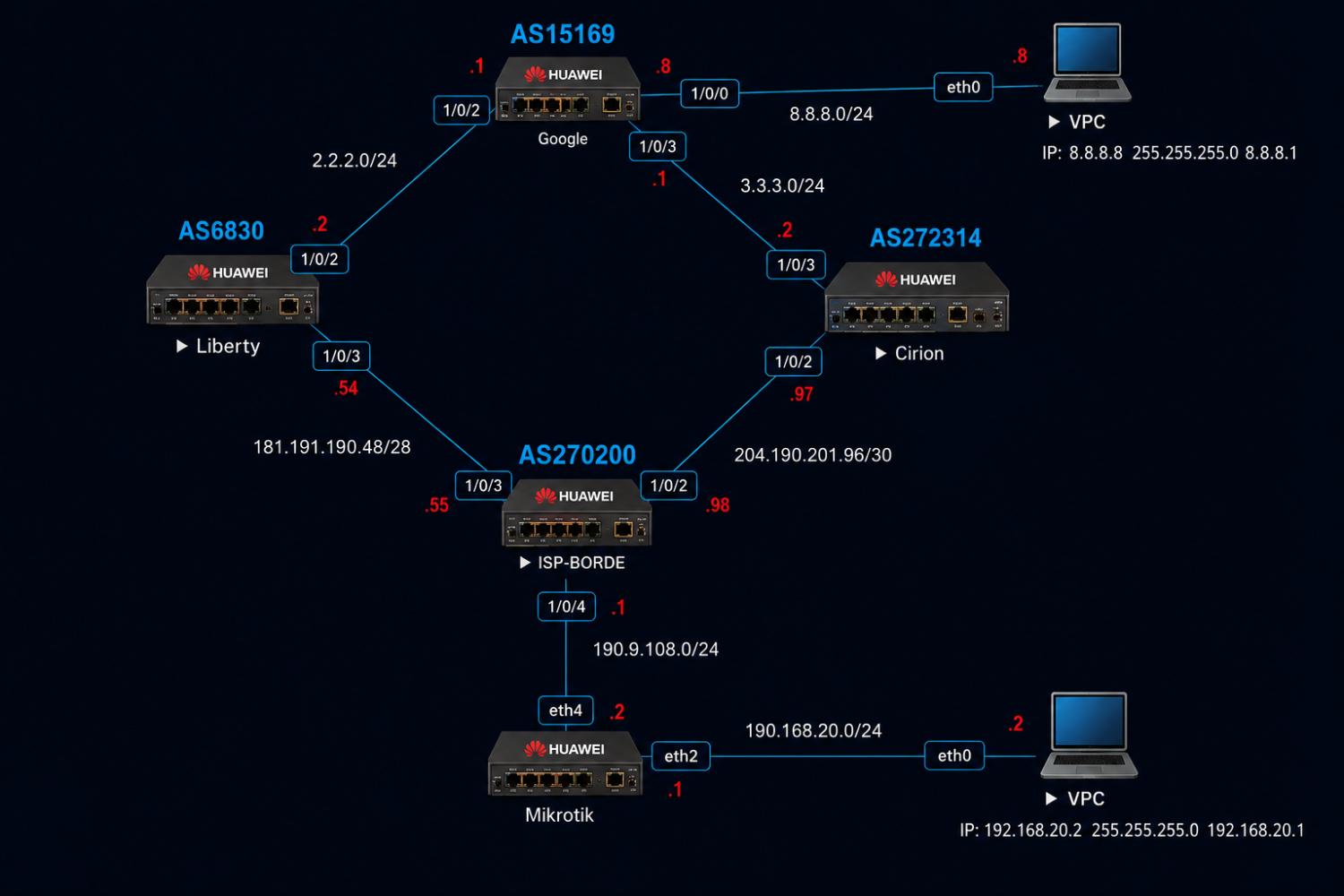
Configuración de router Google
Este router se usa para simular comunicación hacia Google. Como el router tiene su propio ASN esta publicando el prefijo 8.8.8.0/24 y 2.2.2.0/24 mediante BGP.
1Configurar nombre al router y activar ip routing.
<HUAWEI>system-view

[~HUAWEI]sysname Google

[*HUAWEI]commit
2 Configurar direccionamiento en las interfaces.
Este equipo tiene dos enlaces, uno hacia el router de Alestra y otro hacia un servidor que es a donde deben conectarse los clientes de la red ISP.
[~Google]interface Ethernet1/0/1

[~Google-Ethernet1/0/1]quit

[~Google]interface Ethernet1/0/0

[~Google-Ethernet1/0/0]undo shutdown

[~Google-Ethernet1/0/0]undo portswitch.

[~Google-Ethernet1/0/0]ip address 8.8.8.1 255.255.255.0

[*Google-Ethernet1/0/0]quit

[*Google]commit

[~Google]interface Ethernet1/0/3

[~Google-Ethernet1/0/3]undo shutdown

[~Google-Ethernet1/0/3]undo portswitch

[~Google-Ethernet1/0/3]ip address 3.3.3.2 255.255.255.0

[*Google-Ethernet1/0/3]quit

[*Google]commit

[~Google]interface Ethernet1/0/2

[~Google-Ethernet1/0/2]undo shutdown

[~Google-Ethernet1/0/2]undo portswitch

[~Google-Ethernet1/0/2]ip address 2.2.2.2 255.255.255.0

[*Google-Ethernet1/0/2]quit

[*Google]commit
3Configurar el enrutamiento BGP y anuncio de rutas mediante BGP
Agregamos el ASN dentro de la interfaz de BGP, establecemos el peer con nuestro vecino y agregamos la red para que BGP se encargue de publicarlas a los demás peer.
[~Google]bgp 15169

[*Google-bgp]router-id 2.2.2.1

[*Google-bgp] peer 2.2.2.2 as-number 6830

[*Google-bgp]  peer 2.2.2.2 route-limit 12000

[~Google-bgp] peer 3.3.3.2 as-number 272314

[*Google-bgp]  peer 3.3.3.2 route-limit 12000

[*Google-bgp]ipv4-family unicast

[*Google-bgp-af-ipv4]peer 2.2.2.2 enable

[*Google-bgp-af-ipv4] peer 3.3.3.2 enable

[*Google-bgp-af-ipv4]network 8.8.8.0 255.255.255.0

[*Google-bgp-af-ipv4]quit

[*Google-bgp]commit

[~Google-bgp]quit

[~Google]commit

[~Google]
Configuración Servidor Google
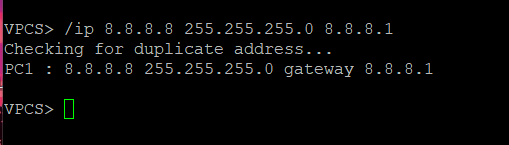
/ip 8.8.8.8 255.255.255.0 8.8.8.1
Configuración de router Liberty
Para este laboratorio hemos colocado Liberty como representación de un Carrier, por lo cual sólo hemos puesto valores ficticios con el fin de la práctica. El prefijo anunciado por este router es el 181.191.190.48/28 mediante BGP.
1 Configurar nombre al router
[~HUAWEI]sysn

[~HUAWEI]sysname Liberty

[*HUAWEI]commit

[~Liberty]
2 Configurar direccionamiento en las interfaces.
[~Liberty]interface Ethernet1/0/2

[~Liberty-Ethernet1/0/2]undo shutdown

[~Liberty-Ethernet1/0/2]undo portswitch

[~Liberty-Ethernet1/0/2]ip address 2.2.2.2 255.255.255.0

[*Liberty-Ethernet1/0/2]quit

[*Liberty]commit

[~Liberty]interface Ethernet1/0/3

[~Liberty-Ethernet1/0/3]undo shutdown

[~Liberty-Ethernet1/0/3]undo portswitch

[~Liberty-Ethernet1/0/3]ip address 181.191.190.54 255.255.255.240

[*Liberty-Ethernet1/0/3]quit

[*Liberty]commit

[~Liberty]quit

<Liberty>save
3Configurar filtros para la ruta por defecto
Agregamos el prefix-list y creamos el route-map para despues asignar ese filtro en el peer con ISP-Borde.
[~Liberty]ip ip-prefix DEFAULT-ONLY index 10 permit 0.0.0.0 0

[*Liberty]route-policy OUT-DEFAULT-ONLY permit node 10

Info: New Sequence of this List

[*Liberty-route-policy] if-match ip-prefix DEFAULT-ONLY

[*Liberty-route-policy]route-policy OUT-DEFAULT-ONLY deny node 20

Info: New Sequence of this List

[*Liberty-route-policy]quit

[*Liberty]commit

[~Liberty]
4Configurar el enrutamiento BGP y anuncio de rutas mediante BGP
Agregamos el ASN dentro de la interfaz de BGP, establecemos el peer con nuestro vecino, agregamos la red para que BGP se encargue de publicarlas a los demás peer y asignamos filtros para solo entregar ruta por defecto.
[~Liberty]bgp 6830

[*Liberty-bgp] router-id 181.191.190.54

[*Liberty-bgp]peer 2.2.2.1 as-number 15169

[*Liberty-bgp]  peer 2.2.2.1 route-limit 12000

[*Liberty-bgp]peer 181.191.190.55 as-number 270200

[*Liberty-bgp]  peer 181.191.190.55 route-limit 12000

[*Liberty-bgp] ipv4-family unicast

[*Liberty-bgp-af-ipv4] peer 2.2.2.1 enable

[*Liberty-bgp-af-ipv4] peer 181.191.190.55 enable

[*Liberty-bgp-af-ipv4]  peer 181.191.190.55 route-policy OUT-DEFAULT-ONLY export

[*Liberty-bgp-af-ipv4] peer 181.191.190.55 default-route-advertise

[*Liberty-bgp-af-ipv4]network 181.191.190.48 255.255.255.240

[*Liberty-bgp-af-ipv4]quit

[*Liberty-bgp]commit

[~Liberty-bgp]quit

[~Liberty]commit
Configuración de router Cirion
Para este laboratorio hemos colocado Cirion como representación de un Carrier, por lo cual sólo hemos puesto valores ficticios con el fin de la práctica. El prefijo anunciado por este router es el 181.191.190.48/28 mediante BGP.
1Configurar nombre al router y activar ip routing.
[~HUAWEI]sysnam

[~HUAWEI]sysname Cirion

[*HUAWEI]commit

[~Cirion]
2 Configurar direccionamiento en las interfaces.
[~Cirion]interface Ethernet1/0/3

[*Cirion-Ethernet1/0/3]undo shutdown

[*Cirion-Ethernet1/0/3]undo portswitch

[~Cirion-Ethernet1/0/3]ip address 3.3.3.2 255.255.255.0

[*Cirion-Ethernet1/0/3]quit

[*Cirion]commit

[~Cirion]interface Ethernet1/0/2

[~Cirion-Ethernet1/0/2]undo shutdown

[~Cirion-Ethernet1/0/2]undo portswitch

[~Cirion-Ethernet1/0/2]ip address 204.190.201.98 255.255.255.252

[*Cirion-Ethernet1/0/2]quit

[*Cirion]commit
3 Configurar filtros para la ruta por defecto
Agregamos el prefix-list y creamos el route-map para despues asignar ese filtro en el peer con ISP-Borde.
[~Cirion]ip ip-prefix DEFAULT-ONLY index 10 permit 0.0.0.0 0

[*Cirion]route-policy OUT-DEFAULT-ONLY permit node 10

[*Cirion-route-policy]if-match ip-prefix DEFAULT-ONLY

[*Cirion-route-policy]route-policy OUT-DEFAULT-ONLY deny node 20

[*Cirion-route-policy]quit

[*Cirion]commit
4Configurar el enrutamiento BGP y anuncio de rutas mediante BGP
Agregamos el ASN dentro de la interfaz de BGP, establecemos el peer con nuestro vecino, agregamos la red para que BGP se encargue de publicarlas a los demás peer y asignamos filtros para solo entregar ruta por defecto.
[*Cirion]commit

[~Cirion]bgp 272314

[~Cirion-bgp]router-id 3.3.3.1

[~Cirion-bgp]peer 3.3.3.1 route-limit 12000

[~Cirion-bgp] peer 204.190.201.97 as-number 270200

[~Cirion-bgp] peer 204.190.201.97 route-limit 12000

[*Cirion-bgp]ipv4-family unicast

[*Cirion-bgp-af-ipv4]peer 3.3.3.1 enable

[*Cirion-bgp-af-ipv4]peer 204.190.201.97 enable

[*Cirion-bgp-af-ipv4]  peer 204.190.201.97 route-policy OUT-DEFAULT-ONLY export

[*Cirion-bgp-af-ipv4] peer 204.190.201.97 default-route-advertise

[*Cirion-bgp-af-ipv4] network 204.190.201.96 255.255.255.252

[*Cirion-bgp-af-ipv4]quit

[*Cirion-bgp]commit

[~Cirion-bgp]quit

[~Cirion]commit
Configuración de router ISP-Borde
Este router viene a representar a un ISP que esta haciendo peering con 2 Carriers (Liberty y Cirion para esta práctica), por lo lo que este anuncia su prefijo hacia los Carriers mediante BGP y recibe la ruta por defecto de internet en su tabla de ruteo.
1 Configurar nombre al router
[~HUAWEI]sysnam

[~HUAWEI]sysname ISP-BORDE

[*HUAWEI]Commit

[~ISP-BORDE]
2 Configurar direccionamiento en las interfaces.
[*ISP-BORDE-Ethernet1/0/3]undo portswitch

[*ISP-BORDE-Ethernet1/0/3]undo shutdown

[~ISP-BORDE]interface Ethernet1/0/3

[~ISP-BORDE-Ethernet1/0/3]ip address 181.191.190.55 255.255.255.240

[*ISP-BORDE-Ethernet1/0/3]quit

[*ISP-BORDE]commit

[~ISP-BORDE]interface Ethernet1/0/2

[*ISP-BORDE-Ethernet1/0/2]undo shutdown

[*ISP-BORDE-Ethernet1/0/2]undo portswitch

[~ISP-BORDE-Ethernet1/0/2]ip address 204.190.201.97 255.255.255.252

[*ISP-BORDE-Ethernet1/0/2]quit

[~ISP-BORDE]commit

[~ISP-BORDE]interface Ethernet1/0/4

[~ISP-BORDE-Ethernet1/0/4]undo shutdown

[~ISP-BORDE-Ethernet1/0/4]undo portswitch

[~ISP-BORDE-Ethernet1/0/4]ip address 190.9.108.1 255.255.255.0

[*ISP-BORDE-Ethernet1/0/4]quit

[*ISP-BORDE]commit
3Configurar filtros para el prepend
Agregamos el prefix-list y creamos el route-map para despues asignar ese filtro en el peer con ISP-Borde.
[~ISP-BORDE]ip ip-prefix DEFAULT-ONLY index 10 permit 0.0.0.0 0

[*ISP-BORDE]route-policy IN-BACKUP permit node 10

Info: New Sequence of this List

[*ISP-BORDE-route-policy] if-match ip-prefix DEFAULT-ONLY

[*ISP-BORDE-route-policy]apply as-path 270200 270200 additive

[*ISP-BORDE-route-policy]quit

[*ISP-BORDE]commit

[~ISP-BORDE]

[~ISP-BORDE]route-policy IN-BACKUP permit node 20

Info: New Sequence of this List

[*ISP-BORDE-route-policy]quit

[*ISP-BORDE]commit
4Configurar el enrutamiento BGP y anuncio de rutas mediante BGP
Agregamos el ASN dentro de la interfaz de BGP, establecemos el peer con nuestros vecinos, agregamos la red para que BGP se encargue de publicarlas a los demás peer y asignamos filtros para asignar prepend, asi tenemos un carrier como principal y otro como respaldo.
[~ISP-BORDE-bgp]router-id 190.9.108.1

[~ISP-BORDE-bgp] peer 181.191.190.54 as-number 6830

[~ISP-BORDE-bgp]peer 181.191.190.54 route-limit 12000

[~ISP-BORDE-bgp]peer 204.190.201.98 as-number 272314

[~ISP-BORDE-bgp]peer 204.190.201.98 route-limit 12000

[*ISP-BORDE-bgp] ipv4-family unicast

[*ISP-BORDE-bgp-af-ipv4]peer 181.191.190.54 enable

[*ISP-BORDE-bgp-af-ipv4] peer 204.190.201.98 enable

[*ISP-BORDE-bgp-af-ipv4]peer 204.190.201.98 route-policy IN-BACKUP import

[*ISP-BORDE-bgp-af-ipv4]  network 190.9.108.0 255.255.255.0

[*ISP-BORDE-bgp-af-ipv4]quit

[*ISP-BORDE-bgp]commit

[~ISP-BORDE-bgp]quit

[~ISP-BORDE]commit
Verificación de ruta por defecto
1 Verificación de la sesión BGP de ISP-Borde con Liberty y Cirion
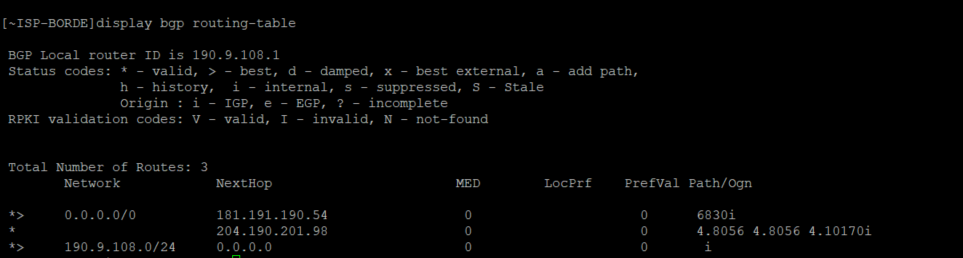
[~Liberty]display bgp peer
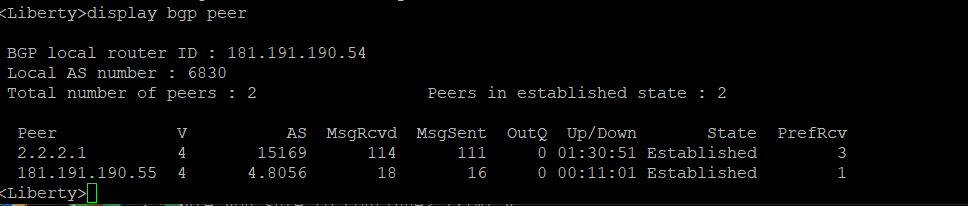
<Liberty>display bgp peer
Configuración de router ISP-Core
Este router viene a representar un router de agregación donde estamos colocando a los clientes de la red. Se ha puesto que el enlace hacia el borde use las ips públicas de la red para que se pueda natear directamente desde el router core.
1Configurar direccionamiento en las interfaces.
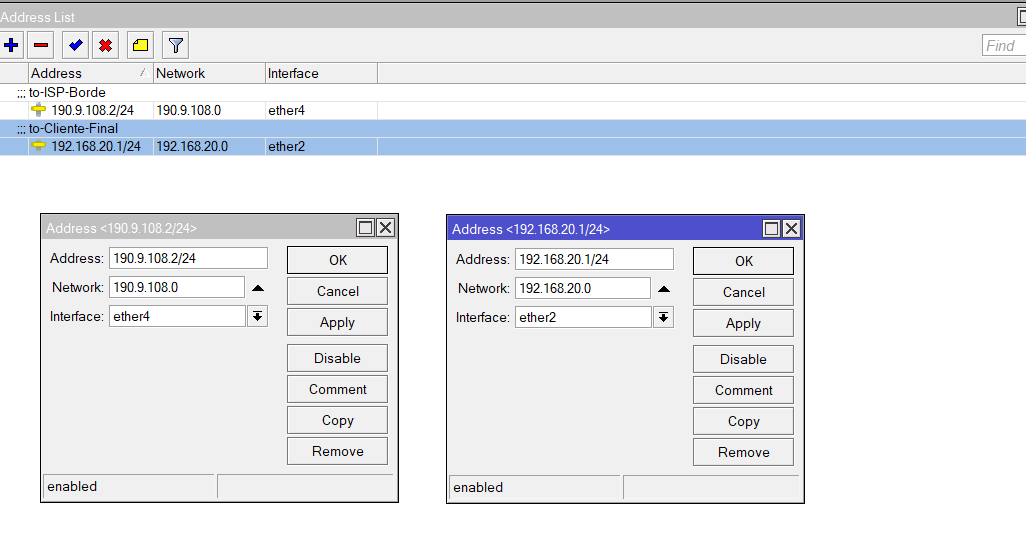
/ip addressadd address=190.9.108.2/24 comment=to-ISP-Borde interface=ether4 network=190.9.108.0


add address=192.168.20.1/24 comment=to-Cliente-Final interface=ether2 network=192.168.20.0
2 Colocamos la ruta por defecto hacia el router de borde
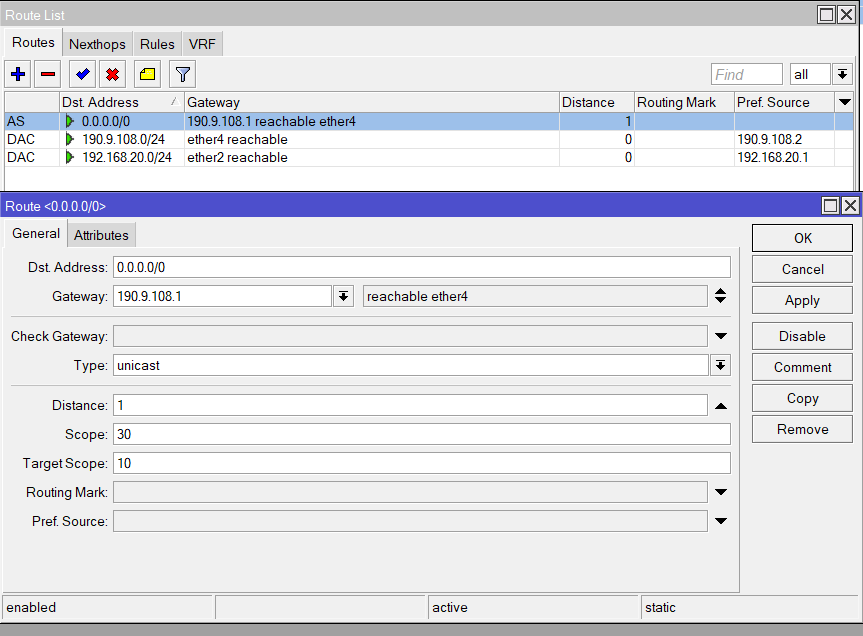
/ip route add distance=1 gateway=190.9.108.1
3Agregamos el NAT para salida a internet de los clientes
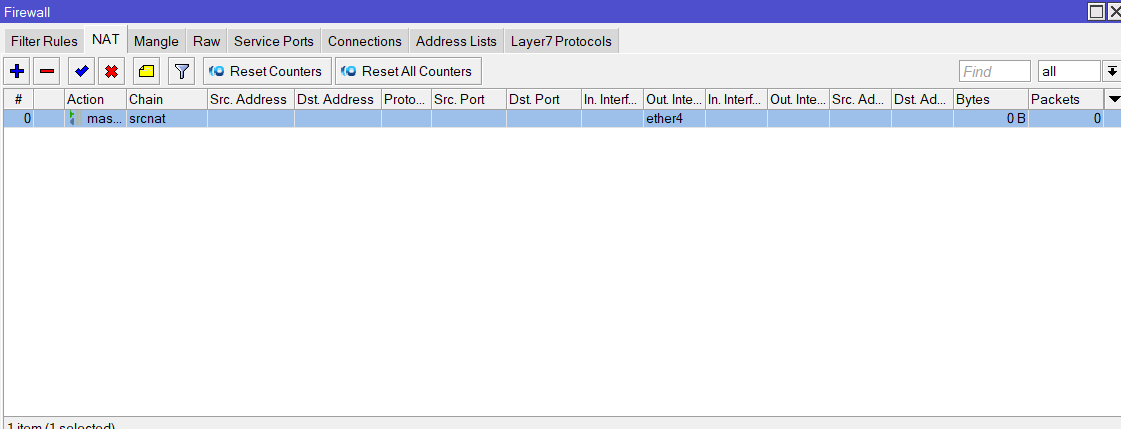
/ip firewall nat add action=masquerade chain=srcnat
Verificación en cliente final
1Configuración Laptop Cliente Final

/ip 192.168.20.2 255.255.255.0 192.168.2.1
Validación del Ping y Tracer
Si entramos al equipo de laptop que tenemos conectado al ISP-Core, podemos hacer un ping a 8.8.8.8 y veremos como obtenemos respuesta.
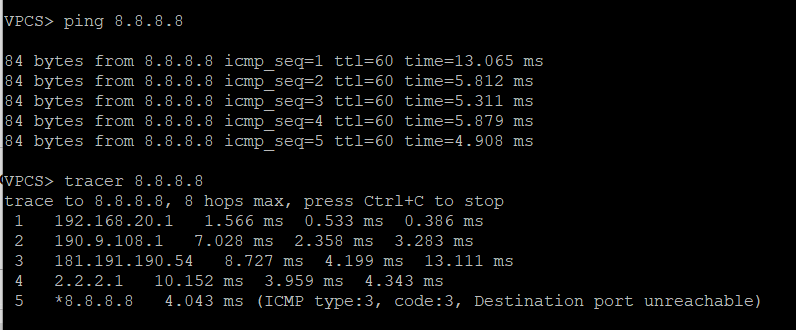
ping 8.8.8.8


tracer 8.8.8.8


 Gracias:
  Me agrada:
  Me desagrada:


 Citar
Citar